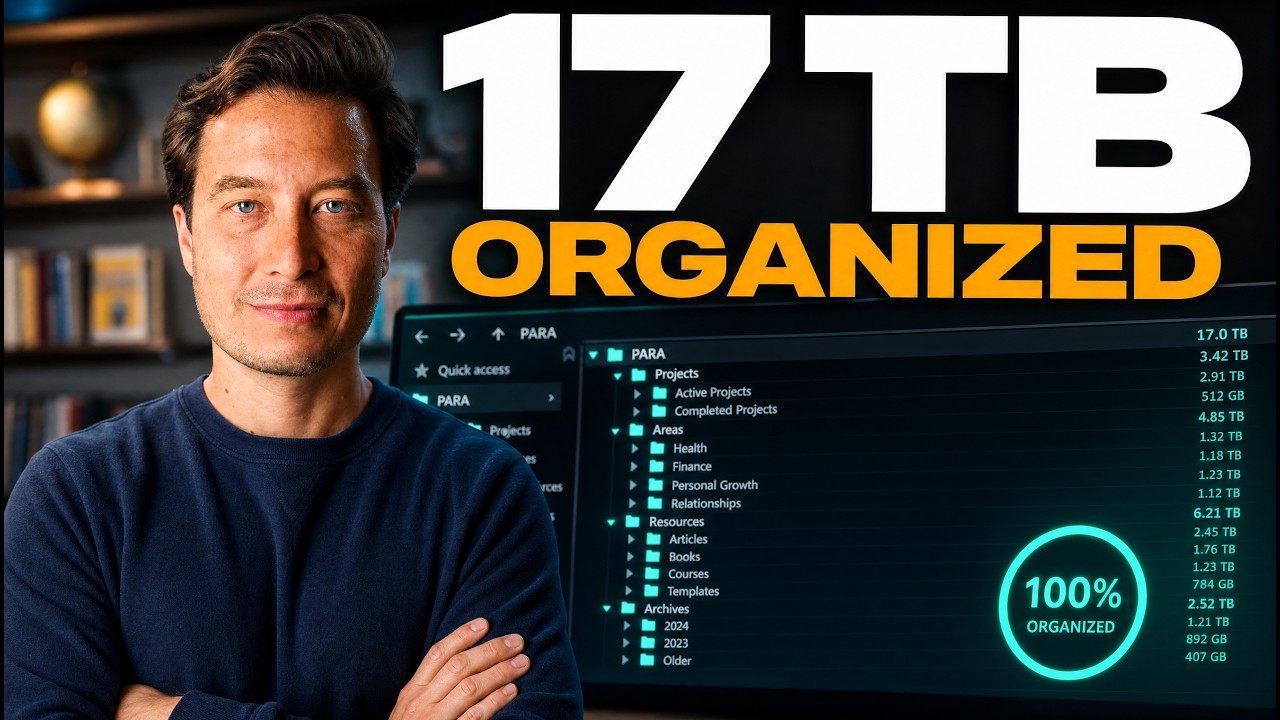

If you want to get the most out of AI tools like Claude or ChatGPT, the single biggest unlock is not your prompts — it's your file organization. When your files are organized in a clear, consistent folder structure, you can point AI at any chunk of your work and get meaningful, context-rich results in seconds. That's the core idea behind the PARA method, a four-folder system that productivity expert Tiago Forte has been teaching for over a decade. In this breakdown, we'll walk through exactly how he sets it up across his laptop and three separate drives — and how you can do the same.
How Do You Organize Files So AI Can Actually Use Them?
The answer is simpler than most people expect: pre-formed folders of related files. AI tools work best when you give them a coherent chunk of context — not a single document, and not your entire hard drive. A well-named folder full of relevant files is the perfect unit. It's specific enough to be useful, broad enough to give the AI real context to work with.
Tiago's setup makes this effortless. He has sidebar shortcuts in Mac Finder that let him jump to any major folder in one or two clicks. When he opens an AI tool, he can instantly grab a project folder, an area folder, or both — and hand them off to the AI as context. The system does the heavy lifting before the AI even starts.
The key insight: your folder structure is your prompt engineering. If your files are scattered and randomly named, no AI can make sense of them. If they're organized into meaningful, purposeful folders, AI becomes dramatically more powerful.
What Is the PARA Method and How Does It Work?
PARA stands for Projects, Areas, Resources, and Archives. It's a four-category system for organizing every file, note, and document in your life.
- Projects — Active work with a clear goal and deadline. Examples: launching a course, writing a book, building a recording studio.
- Areas — Ongoing responsibilities with no end date. Examples: marketing, health, finances, YouTube channel.
- Resources — Reference material you might use someday. Examples: UX design notes, swipe files, research.
- Archives — Everything that's no longer active but worth keeping. Completed projects, old areas, outdated resources.
The genius of PARA for AI use is the relationship between Projects and Areas. Every project lives inside a broader area. A book launch is a project inside the broader area of Books. A studio build is a project inside the broader area of YouTube. When you feed an AI both the specific project and the broader area it belongs to, you give it two levels of context: the detailed, tactical data of what you're doing right now, and the long-term strategic view of where it all fits.
How to Set Up Google Drive With PARA Folders
Tiago runs three separate drives alongside his local machine, and each one follows the exact same PARA structure. Here's the breakdown:
Local Machine
His home folder, desktop, and downloads live here. These are files that don't need to sync anywhere — temporary items or machine-specific content.
Personal Google Drive
Completely separate from work. This drive is connected to his personal Gmail account and contains five top-level folders: an Inbox (for anything that hasn't been sorted yet), plus Projects, Areas, Resources, and Archives — all personal. Family stuff, personal health tracking, hobbies, side interests. None of it mixes with work.
Individual Work Google Drive
This is his professional drive — private to him, not shared with anyone else at the company. Same five-folder structure, but everything is work-related: his individual work projects, work areas, work resources, and work archives.
Shared Company Drive (Forté Labs)
This is where the whole team lives. Every employee has access. Same PARA structure, but for company-wide projects, shared areas, collective resources, and the company archive. This drive is massive — around 17 TB — which brings up an important technical consideration covered in the next section.
In Finder's sidebar, Tiago has each of these top-level PARA folders pinned as a shortcut. That means at any moment, he's one click from any category across any of his drives. It sounds simple. The impact is enormous.
Should You Separate Personal and Work Files? Yes — Here's Why
Mixing personal and professional files is one of the most common organizational mistakes people make. It creates confusion, makes searching harder, and — critically for AI — muddies the context you're providing.
When you hand an AI a folder to analyze, you want that folder to be about one thing. If your marketing notes are mixed in with your personal journal entries, the AI has to wade through noise to find the signal. Clean separation means cleaner context, which means better AI output.
There's also a practical privacy reason. Your personal Google Drive is tied to your personal account. Your work drive is tied to your professional account. Your shared company drive is visible to your entire team. Keeping these lanes separate protects your privacy and keeps your professional and personal thinking from bleeding into each other.
Google Drive Stream vs Mirror: Which Should You Use?
This is one of the more technical decisions in the setup, and it matters a lot if you work with large shared drives.
Mirroring downloads a full copy of your drive to your local machine. Every file is available offline, instantly. This is what Tiago uses for his personal drive and his individual work drive — both are manageable in size and he wants everything available without an internet connection.
Streaming is different. With streaming, your folders appear in Finder as if they're local — but they're actually just pointers to files in the cloud. You'll see a small cloud icon next to folders that aren't downloaded. They only hit your hard drive when you open them or explicitly choose to make them available offline.
For the Forté Labs shared drive at 17 TB, mirroring is not an option. Streaming is the only practical choice. Tiago keeps only the two projects he's most actively working on downloaded locally: his current book and the AI Second Brain program. Everything else streams on demand.
The takeaway: use mirroring for smaller drives you need offline access to, and streaming for large shared drives where you only need a handful of folders at a time.
How to Use AI to Analyze Multiple Folders at Once
Here's where the whole system pays off. Once your files are organized into PARA folders with sidebar shortcuts, combining them for AI becomes trivially easy.
In the video, Tiago demonstrates this by giving an AI tool the AI course project folder, then adding his marketing area folder and his content area folder. The AI now has:
- The specific, tactical details of the current project (testimonials, feedback surveys, launch assets)
- The long-term strategic context of how marketing and content work at the company
The prompt he uses: "Analyze the contents of the AI course folder. Create a launch and marketing plan, and draw on the contents of the two area folders. Suggest ideas, new strategies, and tactics to reach our audience based on the long-term learnings from those area folders."
The AI doesn't just see the project in isolation. It sees the project in context. That's a fundamentally different — and far more powerful — kind of analysis.
Other combinations worth trying:
- Two projects: Compare and contrast them. What can one teach the other?
- Two areas: Can lessons from your health habits inform your work habits?
- Two resources: How can your knowledge of UX design improve your slide presentations?
- Your full archive: What past projects could be revived or fed into current work?
- Your entire project portfolio: Which projects are likely to succeed? Which should be scoped down or canceled?
The folder structure you build becomes a playground for mixing, matching, combining, and synthesizing knowledge you already have — just in ways you've never been able to before.
Can AI Reorganize Your Entire File System for Free?
Yes — and this might be the most accessible entry point for anyone starting from scratch. There's a free Claude skill (a reusable prompt template you load directly into the AI) that you can point at your existing files. It scans what you've got and proposes a step-by-step plan to reorganize everything into the PARA structure described above.
This skill was originally built exclusively for the first cohort of the AI Second Brain live training program. As of now, it's available for free to anyone who joins the newsletter. The link is in the video description.
If your files are a mess right now, this is the fastest way to go from chaos to a system that makes AI genuinely useful — without having to figure out the reorganization yourself from scratch.